You can manage the health condition records and doctor details for learners by selecting the Medical tab in the left-hand pane.

This will open the Medical tab, with the Health Conditions sub-tab displayed by default.
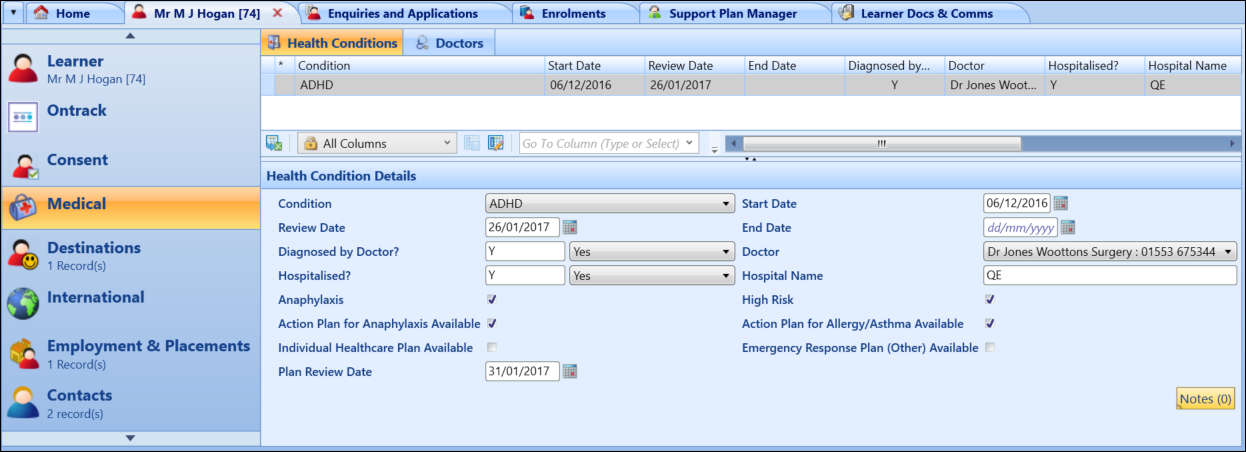
From the Medical tab, you can:
 View health conditions
Select the Health Conditions sub-tab to display health conditions recorded for the learner.
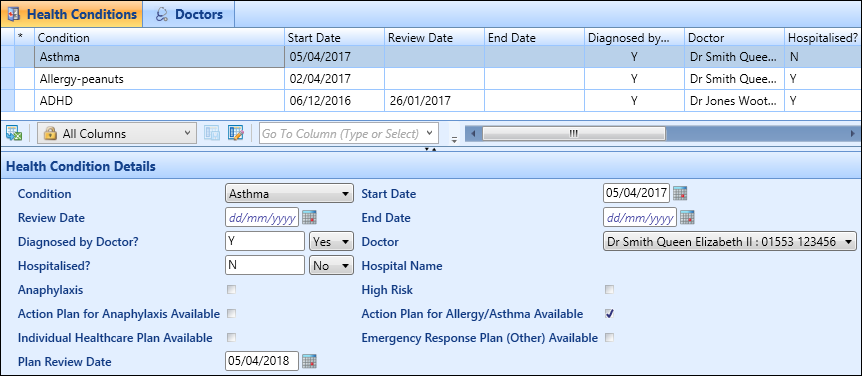
Add health conditions
The same health condition can be added more than once for a learner but the start and end dates cannot overlap.
To add a health condition:
-
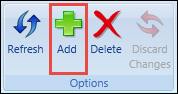
From the Health Conditions sub-tab, select the Add button on the Learner ribbon.
-
Enter the required details for the health condition in the Health Condition Details section or in the grid.
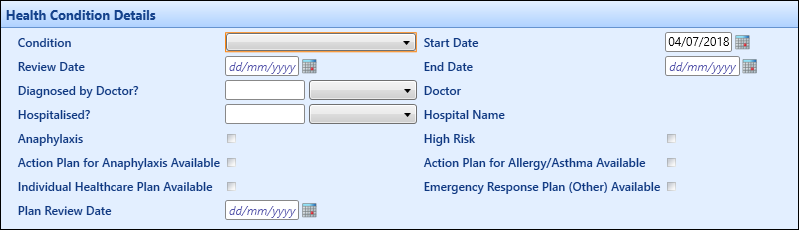
The fields in the Health Condition Details section are described in the following table.
| This field | Holds this information... |
|---|---|
| Condition |
The health condition to add for the learner. Select from the drop-down list. Important.Health conditions are set up in reference data
|
| Start Date | The start date of the health condition. This defaults to the current system date. |
| Review Date | The date the condition was reviewed. The date entered must be between the start and end date values. |
| End Date | The end date of the health condition. |
| Diagnosed by Doctor? | Whether the condition has been diagnosed by a doctor. |
| Doctor |
The name/contact details of the doctor treating the condition. This field will only be available if the Diagnosed by Doctor? field is set to Yes. Important.Doctor records are not shown in the drop-down list where the end date on the Doctors tab is earlier than the current system date.
|
| Hospitalised? | Whether the learner was hospitalised with the condition. |
| Hospital Name | The name of the hospital the learner was hospitalised at. This field will only be available if the Hospitalised? field is set to Yes. |
| Anaphylaxis | If checked, sets the condition as anaphylactic. |
| High Risk | If checked, sets the condition as high risk. |
| Action Plan For Anaphylaxis Available | Whether there is an action plan for anaphylaxis available for this condition. |
| Action Plan for Allergy Available | Whether there is an action plan for allergy available for this condition. |
| Individual Healthcare Plan Available | Whether there is an individual healthcare plan available for this condition. |
| Emergency Response Plan (Other) Available | Whether there is an emergency responsible plan available for this condition. |
| Plan Review Date | The date the plan was reviewed. |
-
Select Save .
The health condition is added.
Delete health conditions
To delete a health condition:
- Select the required health condition in the Health Conditions grid.
-
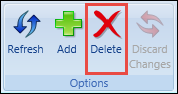
Select the Delete button on the Learner ribbon.
A message is displayed.
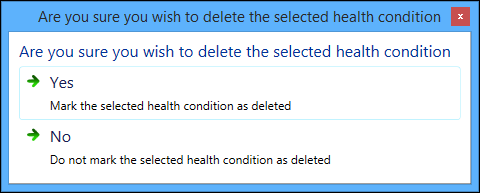
- Select Yes to mark the health condition record for deletion.
-
Select Save .
The health condition is deleted.
View doctor details
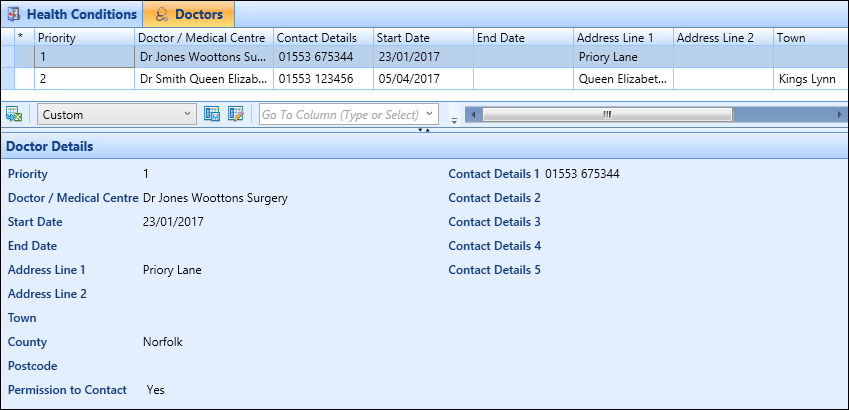
Select the Doctors sub-tab to display doctor details for the learner.
Add doctor details
To add a doctor for a learner:
-
From the Doctors sub-tab, select the Add button on the Learner ribbon.
-
Enter the required details for the doctor in the Doctor Details section.
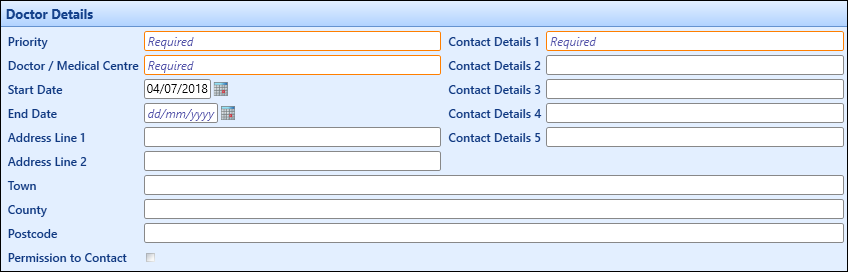
The fields in the Doctor Details section are described in the following table.
| This field | Holds this information... |
|---|---|
| Priority |
The hierarchical priority of the doctor (for example: a priority of 1 displays at the top of the grid as the primary contact). Important.If there is more than one doctor set as a priority of 1, the record with the latest start date is displayed first.
|
| Doctor/Medical Centre | The name of the doctor or medical centre. |
| Contact Details 1-5 | These fields are used to enter contact details for the doctor with the Contact Details 1 field being the primary contact method. |
| Start Date | The start date of the doctor's association with the learner. This defaults to the current system date. |
| End Date | The end date of the doctor's association with the learner. |
| Address Line 1 | The first line of the address. |
| Address Line 2 | The second line of the address. |
| Town | The postal town of the address. |
| County | The county of the address. |
| Postcode | The postcode of the address. |
| Permission to Contact | Whether there is parental permission to contact the doctor. |
-
Select Save .
The doctor details are added.
Delete doctor details
To delete a doctor for a learner:
- Select the required doctor details record in the Doctors grid.
-
Select the Delete button on the Learner ribbon.
A message is displayed.
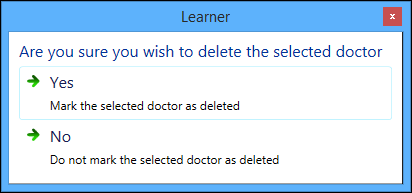
- Select Yes to mark the doctor details record for deletion.
-
Select Save .
The doctor details are deleted.